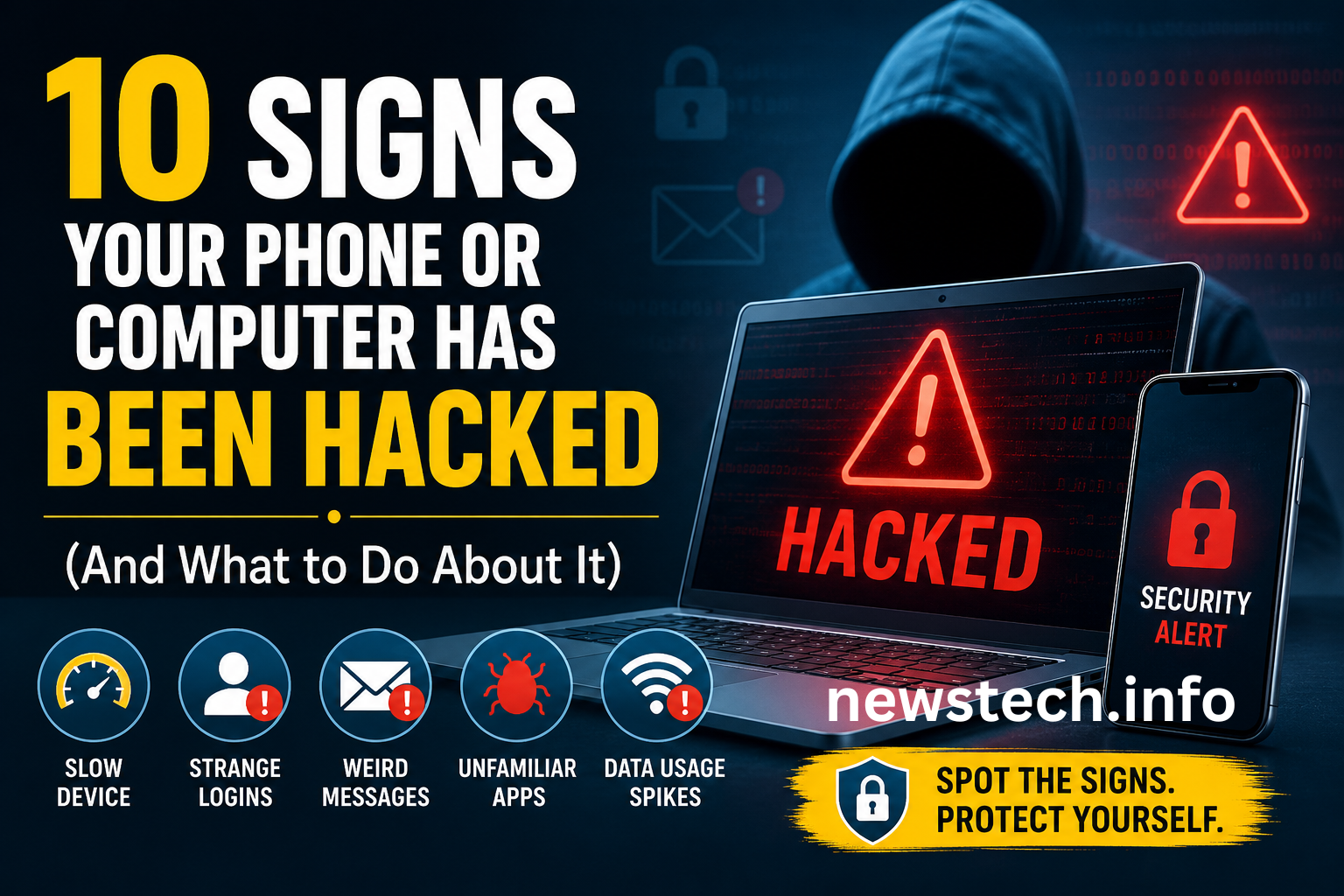
Most people picture a hack as something dramatic — a black screen, a ransom note, a stranger’s face on your webcam. In reality, most hacks are quiet. A hacker’s whole goal is usually to stay invisible for as long as possible, quietly reading your emails, harvesting your passwords, or using your device’s processing power without you ever noticing anything is wrong.
That’s exactly why it’s worth knowing the subtle signs. Most compromises don’t announce themselves — they leak out through small, easy-to-dismiss oddities: a slower phone, a login you don’t recognize, a friend asking why you sent them a weird link.
Here are 10 real warning signs your phone or computer may already be compromised, and what to actually do about each one.
1. Your Passwords Suddenly Stop Working
If a password that worked yesterday is suddenly rejected — and the password-reset process doesn’t work either — that’s one of the clearest signs of an account takeover. It usually means someone got in and changed your credentials to lock you out.
What to do: Use the “forgot password” recovery flow immediately from a device you trust. If recovery emails or texts aren’t arriving, contact the service’s official support line directly rather than clicking any link sent to you.
2. Your Device Suddenly Slows Down or Overheats
Malware running in the background — mining cryptocurrency, transmitting your data, or running other processes — has to use your device’s processor and battery to do it. A phone that’s suddenly hot even when idle, or a laptop fan constantly spinning, is worth investigating.
What to do: Open your phone or computer’s battery/activity settings and check what’s actually eating resources. If you spot an app or process you don’t recognize, look it up before assuming it’s harmless.
3. Accounts Show Changes You Never Made
A new recovery email, an unfamiliar phone number added, two-factor authentication switched off, security questions changed — these are all things an attacker does after breaking in, specifically to make it easier to stay in.
What to do: Review the security settings on your email and financial accounts regularly, not just when something feels off. Reverse anything unfamiliar immediately and re-enable MFA.
4. You See Login Alerts From Places You’ve Never Been
Most major platforms (Google, Apple, Microsoft, banking apps) will notify you of a new sign-in location or device. If you get one of these and it wasn’t you, take it seriously — even if the attacker didn’t get further than that single login.
What to do: Don’t just dismiss the alert. Log in yourself, check the account’s active sessions list, and sign out of anything unfamiliar. Change the password right after.
5. Friends Say They’re Getting Strange Messages “From You”
If people in your contacts start receiving emails, texts, or social media DMs you never sent — often containing links or urgent requests for money — your account (not necessarily your device) has likely been compromised.
What to do: Change your password immediately, check for unfamiliar “connected apps” or forwarding rules in your email settings, and post a heads-up to your contacts not to click anything from you until you’ve confirmed it’s secure.
6. Unfamiliar Apps or Programs Appear
Spotting software you never installed — especially something with a generic or oddly-named icon — is a strong indicator of a compromise. This applies to computers and phones alike.
What to do: Go through your full app/program list (not just your home screen) at least once every few months. Uninstall anything you don’t recognize, and search the exact name online before doing anything else, since some legitimate system files have unfamiliar-looking names too.
7. Your Browser Redirects or Fills With Pop-Ups
If your browser starts opening unfamiliar tabs, redirecting your searches to strange sites, or bombarding you with pop-ups even outside of normal browsing, that’s a classic sign of adware or a hijacked browser extension.
What to do: Check your browser’s extensions list and remove anything you don’t remember installing. Reset your browser’s homepage and default search engine if they’ve changed without your input.
8. Your Data Usage Spikes for No Reason
Malware often needs to communicate with an attacker’s server — sending stolen data out or receiving new instructions. That traffic shows up as data usage you can’t otherwise explain.
What to do: Check your data usage breakdown by app (in your phone’s settings) or your router’s traffic logs. A single unfamiliar app consuming unusually large amounts of data is worth investigating immediately.
9. Your Webcam or Microphone Indicator Turns On Unexpectedly
Most modern phones and laptops show a small light or icon when the camera or mic is active. If it turns on when you’re not using either, that’s worth taking seriously.
What to do: Close all apps and check if the indicator turns off. If it doesn’t, disconnect from the internet and investigate which process is accessing it before reconnecting.
10. You Get a Ransom Message or Can’t Access Your Own Files
The most obvious sign on this list — a message demanding payment to “unlock” your files, or files that suddenly show unfamiliar extensions and won’t open, usually means ransomware.
What to do: Disconnect the device from the internet and any shared drives immediately to stop it from spreading. Don’t pay the ransom — there’s no guarantee you’ll get your files back, and it funds further attacks. Norton’s guide on identifying compromise also recommends contacting a professional before attempting to remove ransomware yourself, since some tools can trigger the malware to delete files faster.
What to Do If You Think You’ve Been Hacked (General Steps)
If more than one of these signs applies to you, don’t wait for more proof — start containing it:
- Disconnect from the internet if you suspect active malware, to stop it from communicating or spreading.
- Change your passwords from a separate, trusted device — starting with email, since it’s usually the key to resetting everything else.
- Enable multi-factor authentication everywhere it’s offered.
- Run a full security scan using reputable antivirus/anti-malware software.
- Check financial accounts for unfamiliar transactions and consider a credit freeze if personal data may have been exposed.
- Let your contacts know if messages may have been sent from your accounts without your knowledge.
- Back up clean files once you’re confident the device is secure, and keep future backups separate from your main device.
If you want the deeper version of the “why” behind a lot of this — how hackers actually get in, in the first place — our breakdown of AI-powered cyberattacks in 2026 covers the phishing and social-engineering tactics that lead to most of these compromises.
Frequently Asked Questions
No single sign is 100% proof, but if you notice several of the signs above together — especially password lockouts, unfamiliar logins, and unknown apps — treat it as a likely compromise and start securing your accounts immediately.
Sometimes. Removing unfamiliar apps, resetting browser settings, and running a mobile security scan can resolve many issues. A factory reset is the most reliable fix for persistent malware, but back up your important files first (photos, contacts) — not apps, which could reintroduce the problem.
Not always. Antivirus catches a lot of known malware, but sophisticated attacks — or ones relying on stolen credentials rather than malicious software — can slip past it entirely. That’s why behavioral signs like the ones above still matter.
Most cybersecurity experts and law enforcement agencies advise against it. Paying doesn’t guarantee you’ll get your files back, and it directly funds future attacks.
A quick review of your account activity, app list, and browser extensions every couple of months is a reasonable habit — plus immediately any time something feels slightly off.
Leave a Reply