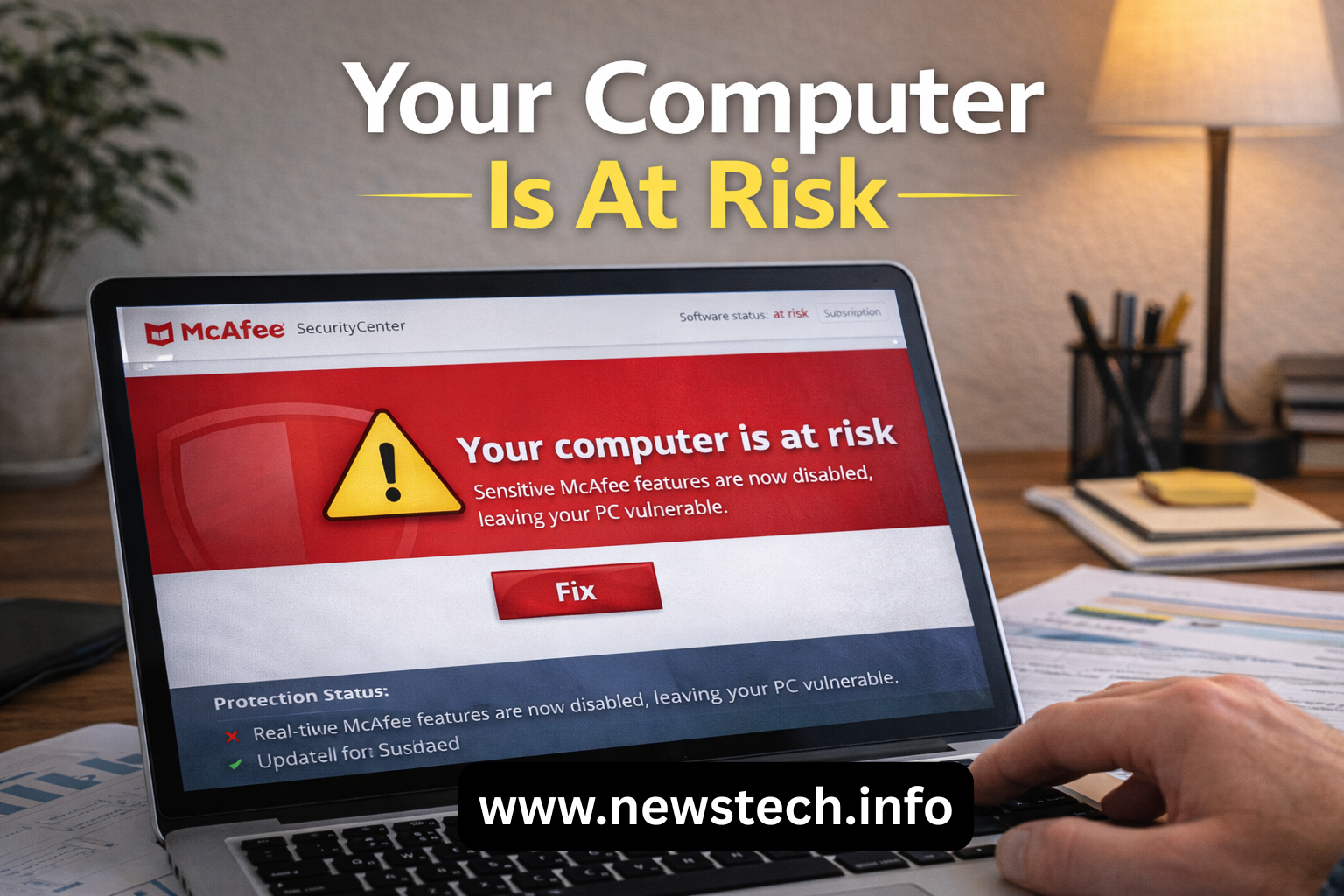
Seeing the message “Your computer is at risk” in your McAfee security dashboard can be alarming. This warning usually appears when an important protection feature — most commonly the firewall — is disabled, missing, or not functioning correctly.
In case your McAfee software performs detection for any issue and finds anything at risk, an exclamation point. Your protection status in the Security Center might vary from green to either red or gray. In such cases, the McAfee Firewall is disabled.
This message can appear on the screen for any of the reasons given below:
- The Firewall is installed but is disabled (It is the most probable cause of the message).
- The Firewall is not installed, still available for installation.
- The Firewall is neither installed nor available for installation.
Fortunately, this issue is usually easy to fix. In this guide, we’ll explain what the message means and walk you through step-by-step solutions to restore your device protection quickly.
Why Does McAfee Show the “At Risk” Warning?
- Firewall disabled
- Firewall not installed
- Corrupted McAfee installation
- Conflicting antivirus software
- Incomplete update
- System configuration issue
Run McAfee Diagnose & Repair Tool
McAfee Diagnose & Repair (McAfee-DR) is an advanced tool that automatically performs the diagnosis and repairs problems with your McAfee product. In case McAfee-DR is unable to resolve the issue, your support technician can utilize all this information to fix the issue. By tapping on Download and Run below, you are giving your confirmation that you understand and agree to the McAfee End-User License Agreement.
Check Firewall Status Manually
Ensure that you don’t have any other third-party antivirus programs installed on your PC for more information about the third-party programs that might create disputes with your McAfee software.
To check if you have encountered the issue given above, follow the various instructions:
- Press Windows key+R to launch the Run window.
- Then copy and paste the following command into the space provided in the Run window: “%programfiles%\common files\mcafee\platform\mcuicnt.exe” /platui personalization.
- Tap OK to run the above command.
- When the Features page opens, make sure the Firewall is listed under Current Features or Available Features.
- Do one of the following:
- In case the Firewall appears under Current Features, close the Features page, maximize the relevant section below, and follow the instructions.
- In case a Firewall appears under Available Features. You should keep the Features page open, maximize the relevant section below, and follow the instructions.
- In case the Firewall doesn’t appear under the Current Features or Available Features, close the Features page, maximize the “Install your McAfee software for one more time” section below, and follow the steps.
The Firewall appears under Available Features.
Install or Enable McAfee Firewall
Note: While opting for this step, select the option to install from the Home section of your McAfee product (Option 1 below) or from the Available Features window (Option 2 below):
Option 1 – Install the Firewall from the Home section
- Launch your McAfee product.
- Tap the cursor on the Home section.
- In case a blue install button comes across your screen, tap on it.
Option 2 – Install the Firewall from Available Features
- In Available Features, to the left of the Firewall, select the tickbox and start the installation.
- You should wait till the completion of the installation process. It might take a bit longer to download and install the Firewall component.
- After the completion of the installation process, close the window.
- Then, restart your computer.
While you have used any one of the above options, check to see whether:
- The Firewall is enabled.
- The At-risk message still appears.
In case the Firewall is still disabled after making enough attempts with the above options, maximize the “install your McAfee software again” section below, and follow the instructions.
Reinstall McAfee Software
There is enough possibility that your McAfee Installation is corrupt and beyond repair. In case it happens, then you have to reinstall your McAfee software, as shown below. After the installation is completed, check whether the Firewall is on.
- Ahead of using these steps, you have to uninstall your McAfee software.
- Then, run the Pre-Install tool:
- Launch your browser, visit McAfee.
- Then, Download the Pre-Install Tool.
- Tap the cursor twice on the Pre-Install_Tool.exe file, and follow the on-screen instructions if you get any.
- Read the risk alerts thoroughly, and tap OK to agree to the changes.
- After the Pre-Install Tool reaches completion.
- Tap OK.
- Tap the cursor over the Close button.
- Restart your PC.
- Now, you have to install the McAfee software on your PC once again.
- Check Whether:
- The At-risk alert still appears.
- The Firewall is enabled.
In case the Firewall remains disabled, contact Technical Support for better assistance.
Quick Fix Checklist
✅ Run McAfee Diagnose & Repair Tool
✅ Check Firewall status
✅ Install the missing Firewall component
✅ Remove conflicting antivirus software
✅ Reinstall McAfee if the problem continues
Final Thoughts
The “Your computer is at risk” message in McAfee does not always mean your system is infected. In most cases, it simply indicates that an important protection feature like the firewall is disabled or not installed properly. By running the Diagnose & Repair tool, enabling the firewall, or reinstalling the software when necessary, you can quickly restore full protection. Keeping your McAfee Antivirus updated and avoiding conflicting security programs will help prevent this warning from appearing again in the future.
Frequently Asked Questions (FAQs)
This warning appears when an important security feature such as the firewall or real-time protection is disabled, missing, or not working properly. It does not always mean your computer is infected.
Not necessarily. The message usually indicates a configuration or installation issue in McAfee software rather than an actual virus or malware infection.
Enable the firewall, run the Diagnose & Repair tool, or reinstall McAfee software.
Yes. Installing multiple antivirus programs can create conflicts that disable McAfee protection features and trigger the at-risk alert.
If the firewall is disabled, your system becomes more vulnerable to unauthorized network access, phishing attempts, and cyber threats.
Open your McAfee dashboard → go to Protection Settings → locate Firewall → turn it ON or install it from Available Features if it is missing.
Reinstallation is recommended if the installation files are corrupted or the firewall cannot be enabled after troubleshooting.
Leave a Reply